Help
Frequently asked questions
Command line parameters
| Switch | Description |
|---|---|
-s | Shutdown |
-r | Restart |
-l | Logoff |
-lo | Lock |
-sb | Standby |
-h | Hibernate |
-hi | Wakeup after standby/hibernate (ini) — WOSB integration only |
-e:<path> | Launch program at the given path |
-t <xx> | Timeout in seconds |
-t:<hh:mm> | Execute at a precise time |
-a | Abort the current action |
-server <url> | Remote server hostname or IP |
-port <number> | Remote server port |
-password <text> | Remote server password |
Examples
| Command | Description |
|---|---|
Shutdown7.exe -l | Locks the computer immediately. |
Shutdown7.exe -s -t 30 | Shuts down the computer after 30 seconds. |
Shutdown7.exe -e:"C:\Windows\notepad.exe" -t:"18:00" | Launch Notepad at 18:00. |
Shutdown7.exe -s -t 1800 -server www.example.com -port 5556 -password mypassword | Instruct a remote computer to shut down in half an hour. |

WOSB integration (Wakeup on StandBy)
- Download WOSB from the developer's website.
-
Copy
wosb.exeinto the same directory asShutdown7.exe. - Start Shutdown7 and open the settings. Activate the integration by checking the appropriate checkbox.
- Click OK and restart the program.
-
In the newly created
WOSB.xmlyou can specify the wakeup times Shutdown7 should use when the Wakeup (Ini) command is executed. Up to four times per day can be scheduled. - You can also specify custom parameters, for example launching a program upon wakeup.
Remote shutdown
Remote shutdown requires:
- Shutdown7 version 1.4 or newer
- A PC with Shutdown7 running in server mode (see below) which is connected to the internet
- A static IP address for the server PC (see below)
- Port forwarding enabled for the server PC (see below)
Activate server mode in Shutdown7
- Open the settings and activate the checkbox next to Server in the Remote Shutdown section.
- Enter the port number you want to use. The port must be free. A port in the range 5000–6000 is recommended.
- Type in your password. Your PC can only be controlled with that password. The password is stored as an MD5 hash — treat it like any other shared secret.
- Press OK and restart the program. If your firewall asks for permission, agree.
Set up port forwarding
Router firewall
If you have a router you have to forward the port to your computer. Go to the router
web interface (usually 192.168.0.1 or 192.168.2.1) and set up
port forwarding. For further instructions refer to the router manual.
Then test the connection with Shutdown7.
Software firewall
If you are using a software firewall (Windows ships with one), you have to add an exception. Shutdown7 can add itself to the list of exceptions (Windows Firewall only): open the settings and click on Firewall exception. The exception is added automatically.
To add the exception manually on Windows:
- Type Firewall in the Start menu search box.
- Click on Windows Firewall with Advanced Security.
- Click on Inbound Rules.
- On the right, click New Rule.
- Click Port and then Next.
- Type in the port number you are using in Shutdown7, then click Next.
- Click Next twice.
- Type the name Shutdown7 and finish the wizard.
- Close the window and test the connection.
Test the port forwarding
Open the settings and go to the Remote Shutdown section. Click Test port forwarding. Shutdown7 tells you whether your computer is accessible from the internet.
Set up a static IP address
Usually your IP address changes every day, but you need a static address to connect to your server reliably. You can get one by registering a subdomain with a service such as no-ip.com or dyndns.com.
To keep your IP address up to date you have to install a client that links your current IP to the subdomain.
Trigger a shutdown from a client PC
- Open the settings and activate the checkbox next to Client in the Remote Shutdown section.
- Press OK and restart the program.
-
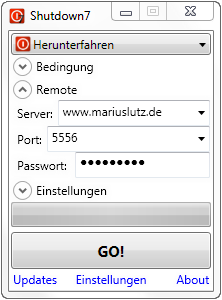
Open the Remote section in the main window. Type in the server URL (without the
http://prefix), the port, and the password. - Press the Start button. Allow any firewall prompts.